Self-onboarding of a Windows based interactive application with its own GUI
In this tutorial we will show how to onboard a Windows based interactive application onto the syngo via environment. For this purpose we will use a simple example and show each step required to have it running in "OpenApps".
For some general background on how to develop interactive apps please see Application Deployment Guide.
The example: ExtAppSample
Overview
'ExtAppSample' is a interactive windows application that accepts command-line arguments. It reads the DICOM images provided in the source folder and and displays the number of files in UI and. along with it it also displays the number of files in all the context folders and allows you to create dicom files in few context folders with button click along with resource consumption toggling.
The onboarding steps:
Step 1: Creating the zip source package
Copy the executable and all the required dependencies into a directory and archive it to a zip. Ensure that the application is able to run as an exe when you run it from that folder without any other dependencies elsewhere.
Step 2: DevPortal: Create new app
Go to the "Applications" tab in the dev portal. Create a new application in the dev portal by pressing the add new button.
The following dialog will be shown:
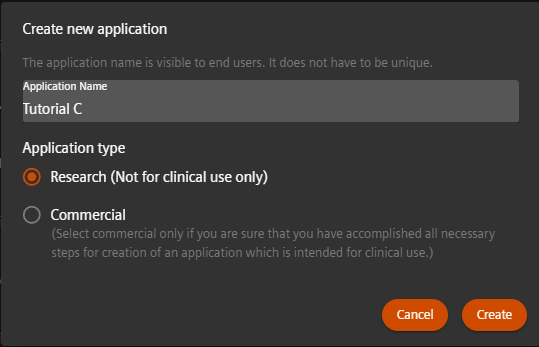
The application name will be used in the dev portal but also in the final deployment to identify the application on the UI.
Step 3: DevPortal: Configure new app
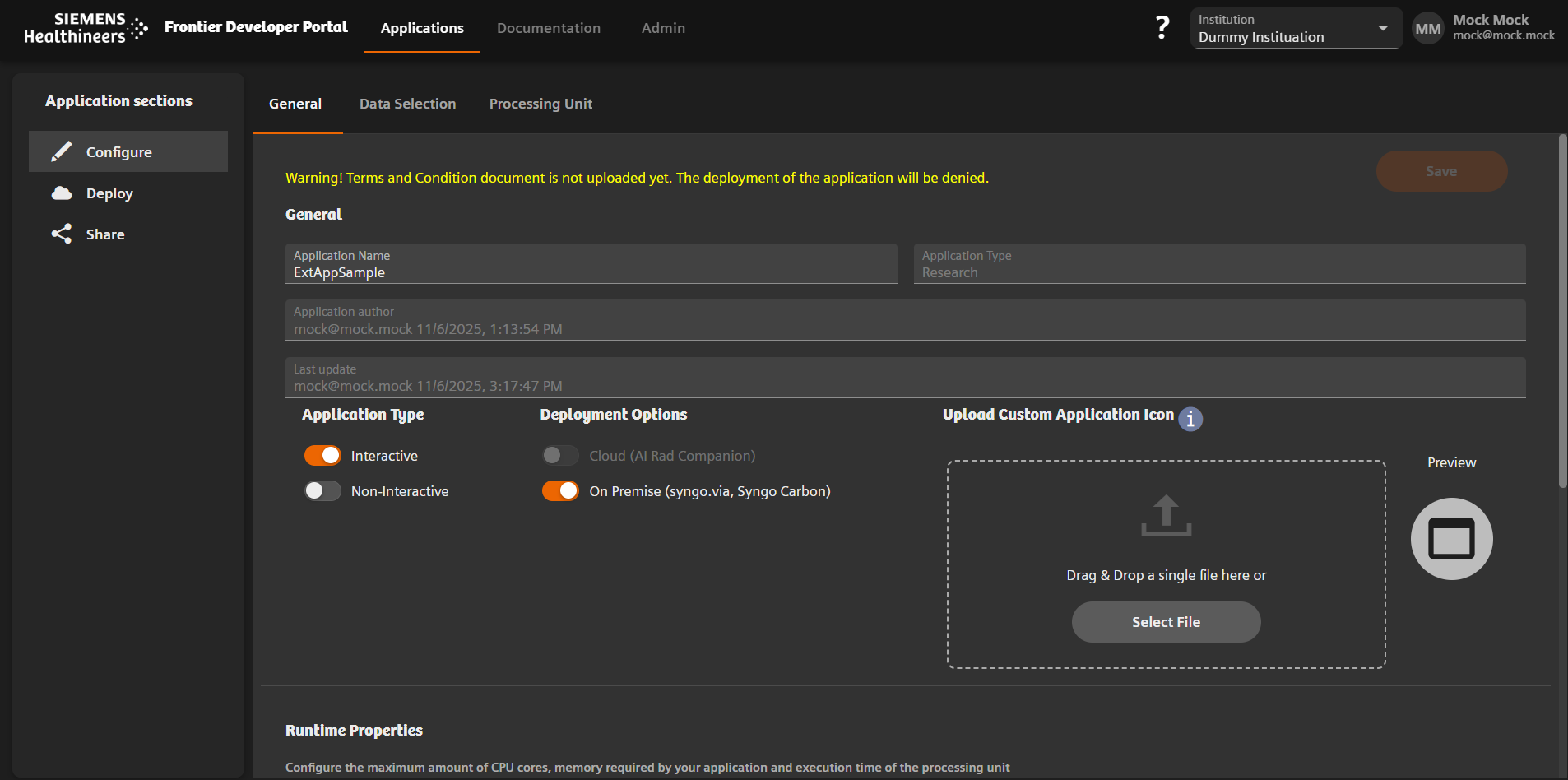
After creation of the application we need to provide more detailed configuration metadata, create deployable artifacts and finally deploy those to the target runtime environment. The respective screen is automatically shown after creation. These steps are done in the following screen split into two tabs, which we will navigate through in this tutorial. You can always come back to this screen by clicking the application in the application list.

The first tab is the General Configuration. Select the Interactive toggle from the application type.
Note: The AIRC deployment will be disabled as this is currently only supported for OpenApps.
In the Data Selection tab for the configuration we need to choose the SOP class UIDs supported by the application. For this tutorial, data types are:
CR, X-Ray For Presentation and Processing, CT and MR images.
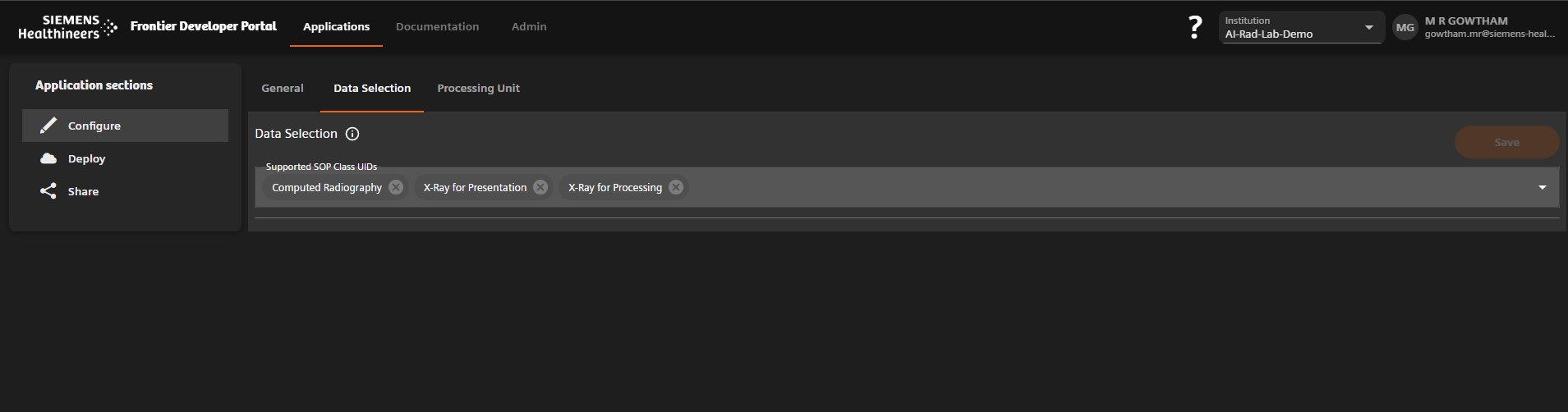
Do not forget to press the "Save" button in the top right corner.
Step 4: DevPortal: Upload processing Unit
After completion of the configuration we go to the next step, i.e. the next tab: "Processing Unit".
Click the Add new button in the lower right corner.
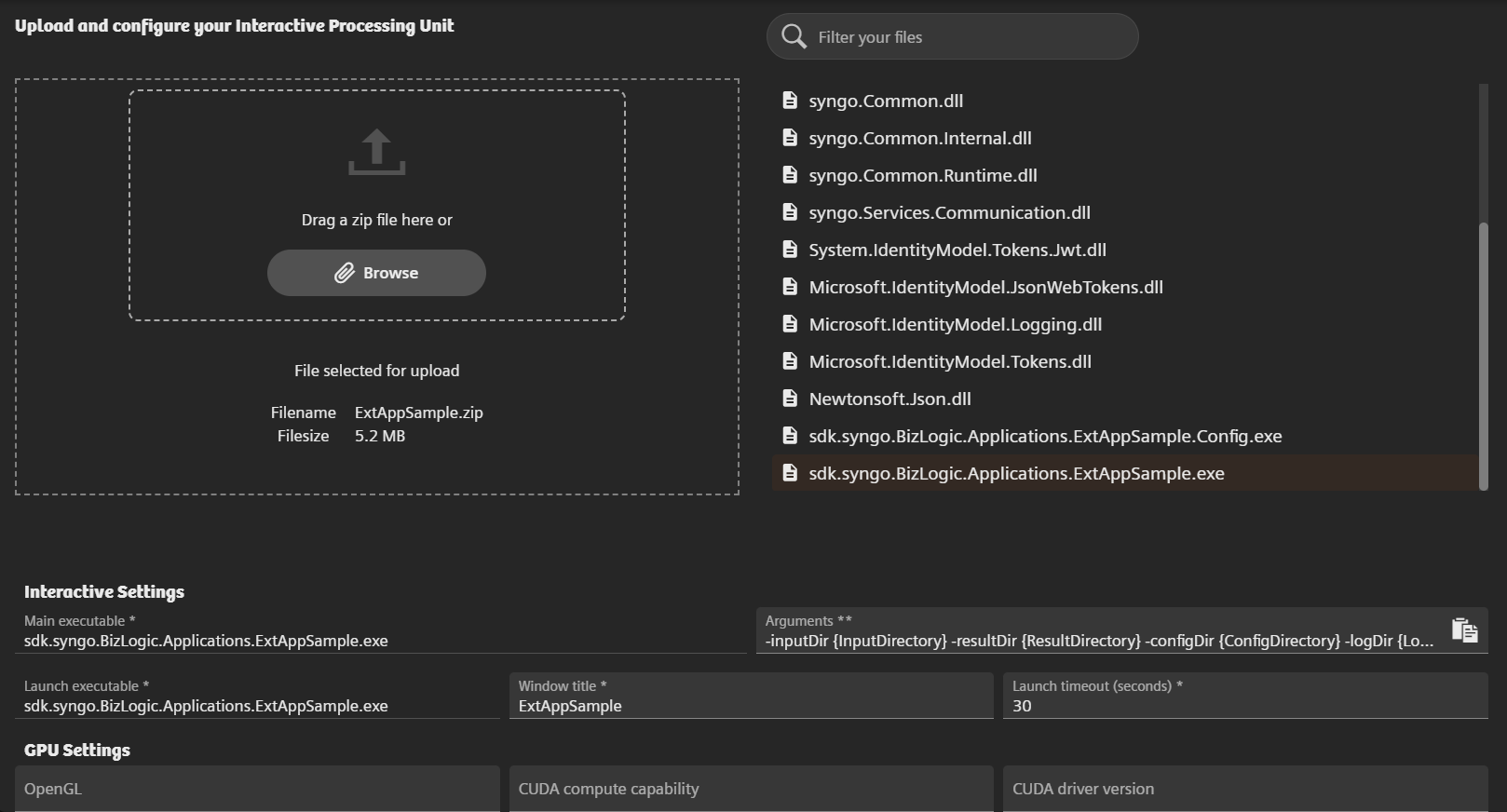
Next upload provided ZIP file via selecting it in browse button or by dropping it into upload selector.
Select the Main executable from the list of the uploaded files displayed in the right side window. In this example, the file to be selected is "sdk.syngo.BizLogic.Applications.ExtAppSample.exe".
You can also search for this file in the top filter, after its selection its path should be in the Executable field. The same file will be set for Launch Executable field as well but if you have a different Launcher executable, you can select the field and select the executable from the list again. Change executable arguments the ones required by your application.
For this application, the arguments are set to:
inputDir {InputDirectory} -suspendDir {SuspendDirectory} -resultDir {ResultDirectory} -localResultDir {LocalResultDirectory} -licenseFile {LicenseFile} -logDir {LogDirectory} -language {Language} -uiLanguage {UiLanguage} -userName {UserName} -workStation {UserStation} -monitorOrientation {MonitorOrientation}
Set the Window title to your application's window title. In the example used, the title is "ExtAppSample". Set the Launch Timeout as well which is in seconds and by default it is set to 30.
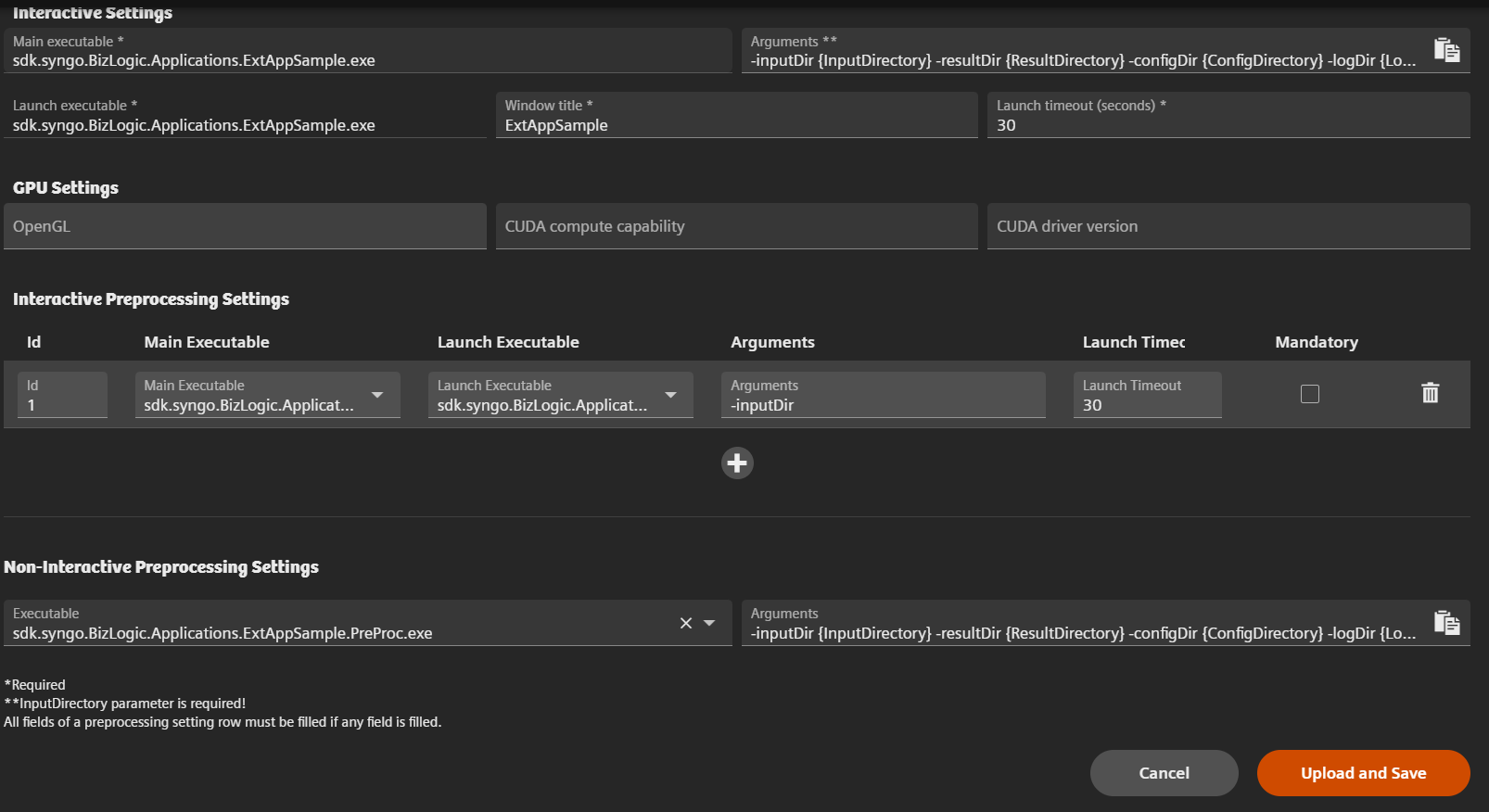
If your app uses GPU, then fill the GPU related settings for the application. If the application has any preprocessing applications which need to run before launching the main application, you can set them in the Preprocessing section.
Non Interactive PreProcessing is also supported which can be configured along with Interactive Application configuration. In order to configure, Select the executable from the dropdown and fill the arguments. The Input Directory is mandatory.
And click Upload and Save. Note that the tokens described in Application Deployment Guide are used in this command line.
Step 5: DevPortal: Deploy to target environment
The final step is to perform the actual deployment of the created deployment artifacts. This is where the two different deployments "OpenApps" and "AI Rad Companion Research" require different user actions but since this is an Interactive Application, only OpenApps deployment is supported.
Open Apps Deployment
The deployment into the OpenApps environment can be achieved using the second tab of the applications details screen: "Deployments" the target environment is based on configuration. If this is the first deployment expect the list to be empty. Click the "Add New" button to add a new deployment:
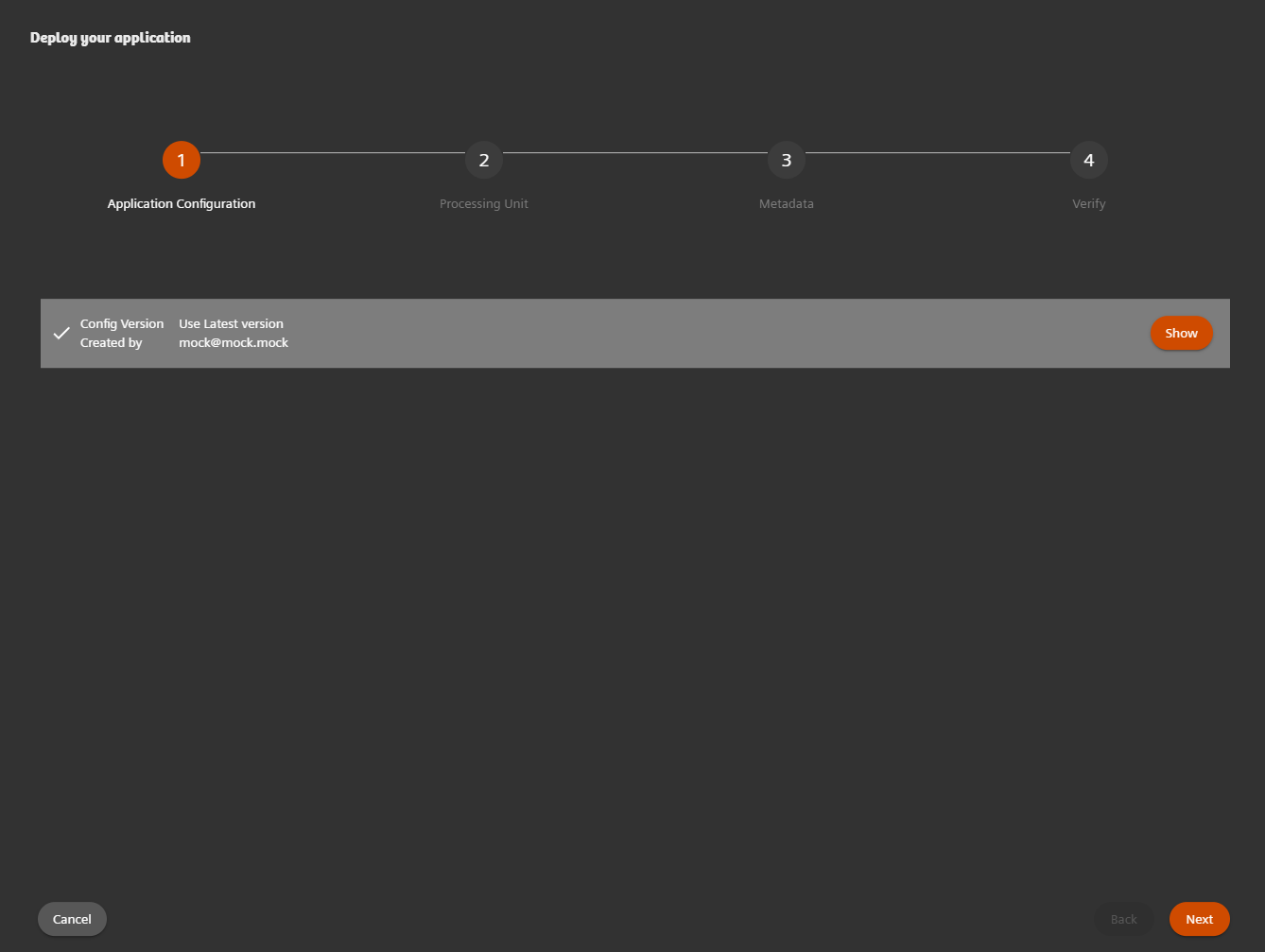 In this menu, the list of saved configurations will be displayed, choose the application configuration and by default the latest configuration is selected.
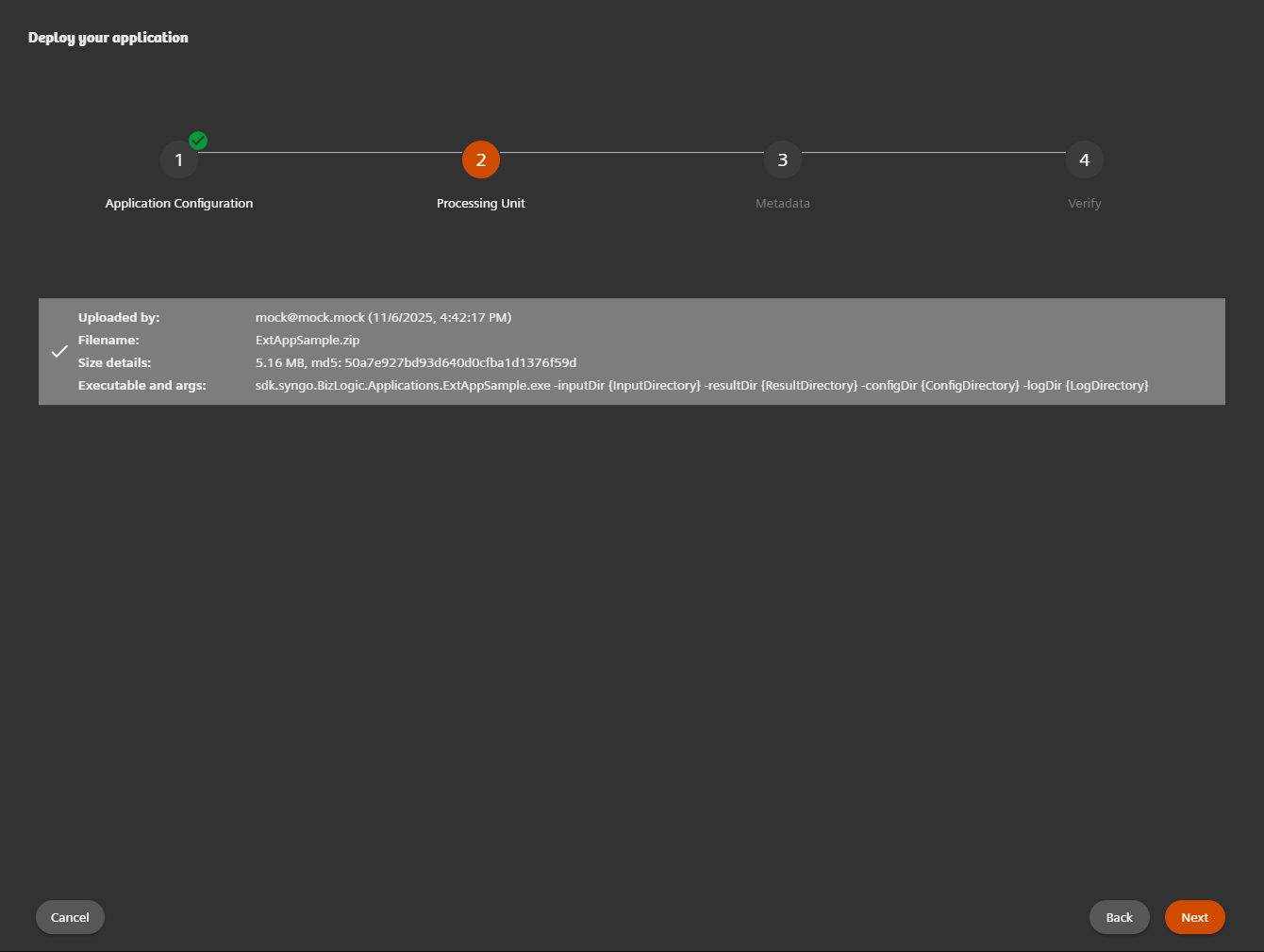 In this menu,the list of saved processing units will be displayed, we choose the processing unit and by default the latest processing unit is selected.
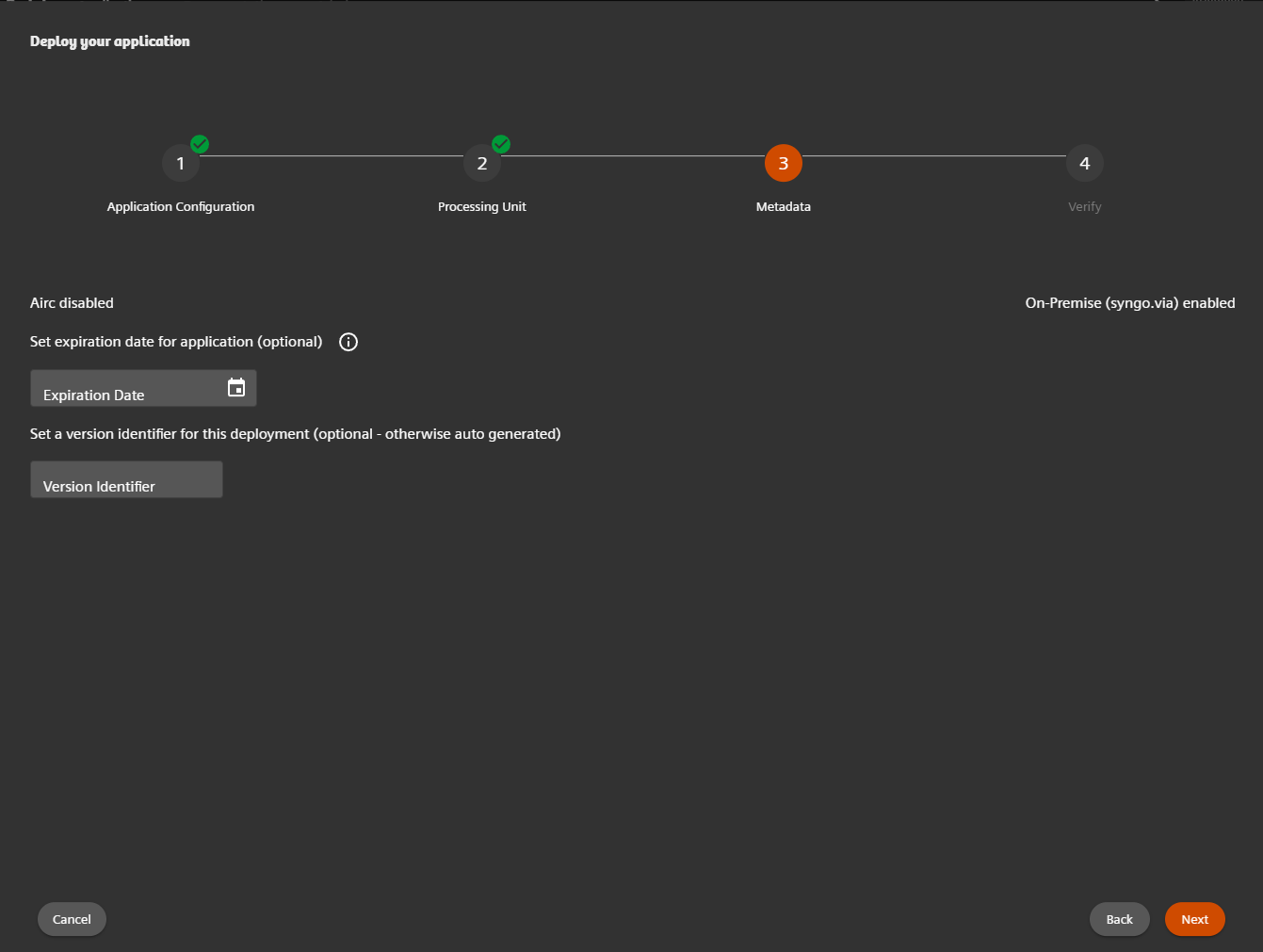 We set Expiration date to at least one day over the current date and continue the wizard and also set the version idenitifier.
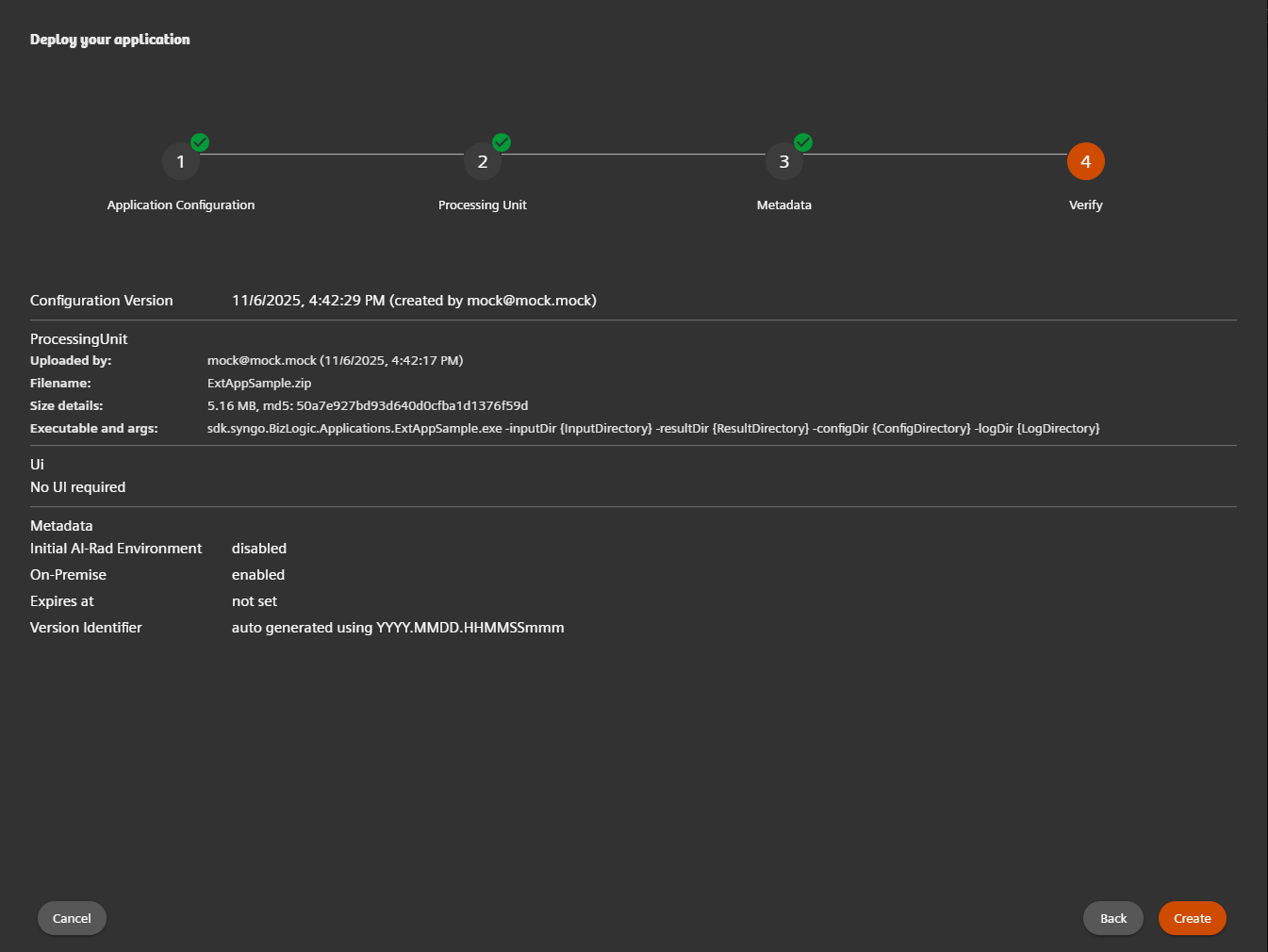 Once you verify the details, you can click on create and the deployment will be created.
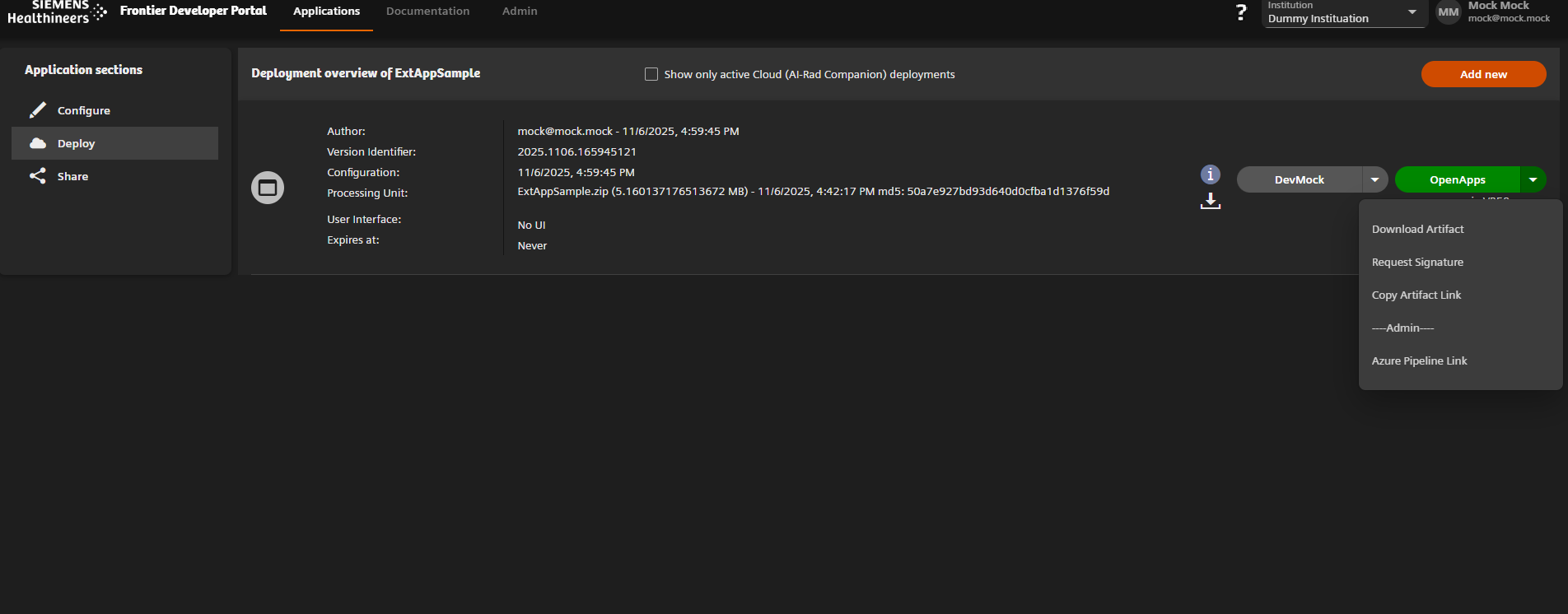
Give it some time for the deployment to finish. You can leave the page and come back later. Successful deployment will be indicated by a "OpenApps" green button.
OpenApps
For OpenApps there will be a possibility to push the generated deployment artifact ("OAF" file) directly to the respective marketplace. However, this is still under development. Therefore we are offering to download the generated OAF file. Afterwards, this OAF file can be installed on a "syngo.via" system of your choice (or any Open-Apps-capable system, for that matter) using a simple install wizard.
For directly downloading the generated OAF file click the "Download Artifact" button. However, in some cases it can be more convenient to download the OAF file directly onto the system where it needs to be installed. For this purpose we also offer to copy the download link ("copy" button) and execute it on the target system. The link has a validity of 30 minutes and both options are provided in OpenApps button...
Congratulations, you have successfully finished the self-onboarding of your first Python-based app using the Frontier developer portal!